Looking at the chart
The bar floating at the foot of the chart changes how the chart is shown. It is there in every workspace, whatever tool you hold, and fades while you draw so you can see beneath it. None of it changes the chart itself.

Colour, B&W and Stitched
| View | Key | What it shows |
|---|---|---|
| Colour | 1 | The chart in its thread colours. |
| B&W | 2 | The chart in black and white, as it prints. |
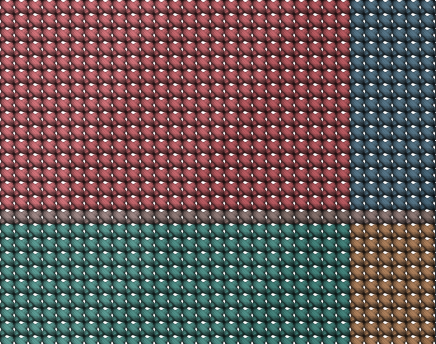
| Stitched | 3 | A picture of what the finished stitching will look like. |
Symbols (Y) shows or hides each thread's symbol on its stitches. Symbols are not drawn when the stitches are very small on screen.
Textures draws Colour and B&W with the chart's stitch texture, on its canvas texture, as Stitched draws them, and you can still draw on the chart. In B&W the texture is grey. With the photo under the chart, the photo shows instead of the cloth. Stitched always has its textures, so the switch is greyed out there.
Stitched is for looking only: to draw, switch back to Colour or B&W. It draws each stitch as thread on cloth, so it shows no symbols and no photo.
Textures
How Stitched draws the thread and the cloth, and Colour and B&W with Textures on, belongs to the chart: it is set in the Chart tab of the Edit workspace, saved with the chart, and each change is one step to undo.
- Stitch texture: how each stitch is drawn. Classic to begin with. Each choice shows a few stitches in your chart's own colours.
- Canvas texture: the cloth behind the stitches. Off (plain cloth in the canvas colour, to begin with), Natural linen or Counted canvas.
- Canvas colour: the colour of the cloth.
| Texture | What it is |
|---|---|
| Classic | How each stitch is drawn |
| Pixel | How each stitch is drawn |
| Cell outline | How each stitch is drawn |
| Cell outline shaded | How each stitch is drawn |
| Cross 2 | How each stitch is drawn |
| Natural linen | The cloth behind the stitches |
| Counted canvas | The cloth behind the stitches |
The stitch texture you choose is also used for the stitched picture you can export.
A new chart starts with the look set in Preferences, under A new chart's look. Changing it there leaves the charts you already have as they are. A chart saved before this setting existed shows the look in your Preferences until you choose one for it.
The photo under the chart
If the chart was made from a photo, Photo (P) shows that photo under the chart. The Chart slider then fades the chart from fully shown (100%) to gone (0%, the photo alone), so you can check the chart against the photo.
Two keys go straight to the usual settings:
- 4 shows the photo with the chart half visible.
- 5 shows the photo alone.
While the chart is almost faded out (under 5%), it cannot be drawn on. Photo is greyed out for a chart started without a photo, and in Stitched.
Zooming and scrolling
- The mouse wheel scrolls the chart, and Shift with the wheel scrolls it sideways. Ctrl (Cmd on a Mac) with the wheel zooms about the point under the pointer, whatever tool you hold, and so does a pinch on a trackpad. To have the wheel zoom by itself, choose Zooms under The wheel in Preferences.
- + and − on the view bar zoom about the middle of the view (Ctrl+= and Ctrl+−). The percentage between them shows the zoom; press it to go back to 100% (Ctrl+1). Fit shows the whole chart (Ctrl+0).
- Zoom runs from 25% to 800%. It starts at 100% for each chart. At either end, + or − is greyed out.
- Pan (H): drag to scroll the chart. Holding Space with any tool in hand lets you drag to scroll, and lets go of the Pan when you let go of the key.
- Zoom (Z): click to zoom in, or choose Out in its options. Right-click, or hold Shift while you click, to zoom the other way.
On a touch screen
- One finger draws with the tool in hand. A finger that starts off the chart scrolls instead.
- Two fingers zoom by spreading or pinching, and scroll by moving together, whatever tool you hold. The chart grows or shrinks with your fingers and is drawn sharp again when you lift one. If a second finger lands while the first is drawing, that stroke is taken back.
- Anywhere but the chart, pinch to zoom the page itself, as on any other page.
- A pen always draws. The first time a pen draws, Draw with the pen only turns on: from then on a finger scrolls the chart and only the pen draws. Turn it off in Preferences, under Touch, and a finger draws again; it stays off. On a phone a finger always draws.
On a tablet or a phone every button is big enough for a fingertip, and the view controls over the foot of the chart are one row you slide sideways. On a tablet the bar under the chart says what a finger does there. Held sideways, the settings panel stands at the right of the chart; held upright, it lies under the chart, across the whole width.
On a phone the tools are in one row along the foot of the screen; slide it sideways for more. In Edit, Threads at its end opens the threads, the chart's settings and the layers over the chart; Done closes them. Menu, at the top left, holds New chart, Save, Add stamp, Preferences, Help and your account. The view controls and the line of measurements under the chart slide sideways when they are wider than the screen.
The threads sheet stops at three heights: drag its top edge up or down, or press the grip at its top to step to the next. Drag it right down, press the dimmed chart behind it, press Done or go Back to close it. In Photo and Export the settings under the chart fold away with the arrow at the right of their header, to give the chart more room; press it again, or one of their tabs, to bring them back. Turn the phone on its side and the tools stand down the left edge, the settings at the right, and the chart keeps the height between.
What is kept
The view you choose (Colour, B&W or Stitched, symbols, textures, photo and slider) is kept by this browser for the next time. A choice that does not apply in the current view, such as Photo in Stitched, waits and comes back when it applies. The zoom is not kept.
The grid is always drawn, with a heavier line every 10 stitches and a medium one every 5, and the rulers round the chart count every 10 stitches.