Selecting and moving
Choosing what to select
Three tools in the Edit workspace pick out part of the chart:
- Select (S): drag a rectangle.
- Lasso (Q): draw round the stitches you want. Its line steps from stitch to stitch, or follows your pointer exactly if you choose Follows the pointer under The lasso line in Preferences.
- Magic wand (W): click a stitch to select its whole area of one colour. Click a backstitch line to select every line of its colour. It has the same Diagonal neighbours and Colour only options as Fill, set separately.
Ctrl+A selects the whole chart, whatever tool you hold: it picks up Select first.
Each has three modes: Select (a new area replaces the selection), Select + (adds to it) and Select − (takes it out of it).
With several layers, a selection takes only the stitches of the active layer. Selecting ignores symmetry.
The piece in hand
What you select lifts off as a piece. Drag it to move it. With the Select mode, pressing outside the piece puts it down and starts a new selection. You can swap between Select, Lasso and the Magic wand and keep the piece; picking any other tool puts it down where it is.
While you hold a piece, Undo cancels it, as Cancel does, and Redo waits until you put it down.
Transparency as colour decides what the piece's empty stitches do when you put it down. Off (to begin with): what lies under them stays. On: they cover it.
The Selection tab
While you hold a piece, a Selection tab opens in the panel on the right.
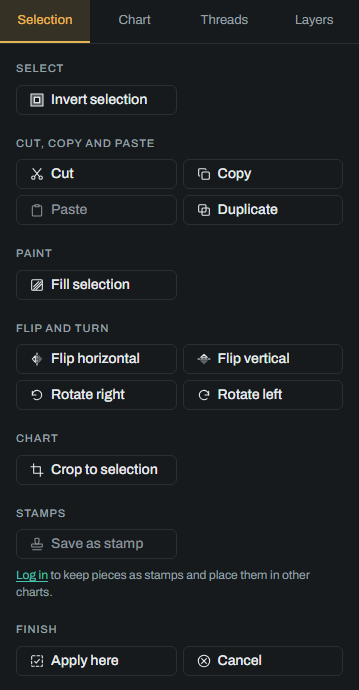
| Button | Key | What it does |
|---|---|---|
| Invert selection | Selects everything the selection leaves out, backstitch included. With nothing selected, the whole chart. | |
| Cut | Ctrl+X | Takes the piece off the chart and keeps it to paste. |
| Copy | Ctrl+C | Keeps a copy of the piece to paste. |
| Paste | Ctrl+V | Pastes the copy onto the active layer as a new piece. |
| Duplicate | Ctrl+D | Leaves the piece where it is and takes a copy of it in hand. |
| Delete, Backspace | Deletes the piece. What you copied before stays copied. | |
| Fill selection | Paints the whole selected area in the foreground colour. | |
| Flip horizontal, Flip vertical | Mirrors the piece left to right, or top to bottom. | |
| Rotate right, Rotate left | Turns the piece a quarter turn. | |
| Crop to selection | Cuts the chart down to the box round the selection, on every layer, and throws away everything outside it. | |
| Save as stamp | Keeps the piece in your account, to place in other charts. | |
| Apply here | Enter | Puts the piece down where it is. |
| Cancel | Escape | Drops the piece in hand without merging it. Anything already merged, such as a piece placed by a paste, stays. |
On a Mac, use Cmd instead of Ctrl.
A pasted piece lands beside the original when you paste it back onto the layer it came from. A cut piece, or one pasted onto another layer, lands where it was taken from.
Apply here and Cancel are also at the end of the options bar.
Crop (C)
Crop cuts the chart down, or makes it bigger, with a frame. Drag an edge or a corner of the frame, or type in the Top, Right, Bottom and Left boxes how many stitches each edge moves in. A negative number adds empty stitches on that side. The bar shows the size before and after, and how big the finished piece is.
Press Apply (Enter) to crop. Cropping changes every layer, as one step to undo. Cancel (Escape) puts the frame back over the whole chart. Picking another tool drops the frame without changing anything.
Move (V)
Drag to move the whole design within the canvas, in whole stitches: every layer, the backstitch and the photo together, as one step. It works on locked layers too, and ignores symmetry.