Getting started
This app turns a photo or a drawing into a cross-stitch chart: a grid where every square is one stitch in one thread colour. You can then change the chart by hand and print it, or open it in a stitching app.
You don't need an account for any of this. Your chart is kept in your browser and is there again the next time you open the site.
Four steps from a photo to a chart
- Choose a photo. On the start screen, press Choose a photo and pick a JPEG, PNG, WebP or SVG file. The photo opens with its settings beside it.
- Make the chart. Set its size, how many colours it may use or any other setting, and press Generate. Change them and press Generate again until you like it; Undo goes back to the chart before. Then press Accept and edit.
- Change it. In Edit you draw, fill, select and move stitches, add lettering and backstitch, or rename and swap threads.
- Get it out. Switch to Export to make printable A4 pages, a PDF for the Pattern Keeper app, a picture, or a file for another stitching program.
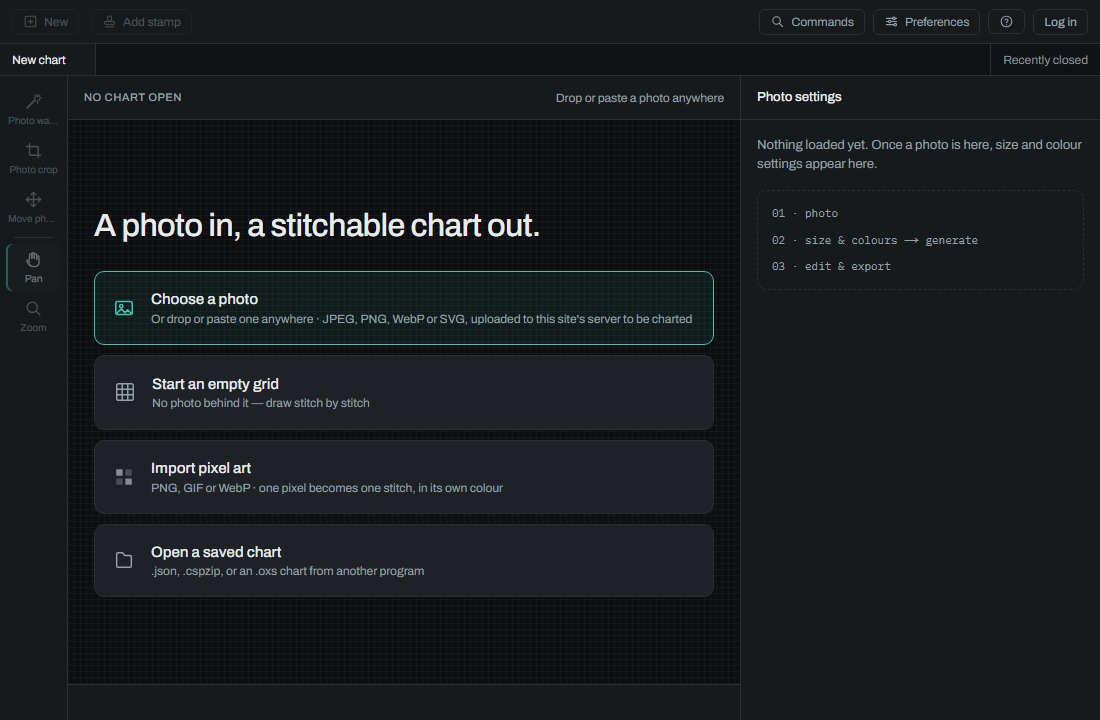
You can also start without a photo: Start an empty grid gives you a blank chart to draw on, Import pixel art turns a small picture into stitches one pixel each, and Open a saved chart opens a chart you saved earlier or an OXS chart from another program.
Making a chart, then working on it
While a chart is made from a photo there are no tabs at the top: the photo's settings are beside it, and Accept and edit takes the chart on. From then on two tabs switch between Edit and Export. Only Edit changes the chart: in Export you can look at it, zoom and scroll, but not draw. To make another chart from the same photo, choose New chart from this photo in Commands (on a phone, in the menu).
| Workspace | What it is for |
|---|---|
| Photo | Make the chart from a photo: its size, its colours and how they are picked |
| Edit | Change the chart: draw, select, letter, set its threads |
| Export | Get the chart out: print it, save it, hand it to another program |
Each workspace keeps its own tool in hand, so going to Export and back to Edit leaves you holding what you held.
The bar at the top
These are there whichever workspace you are in:

- New chart starts again from the start screen. You are asked first if that would lose work you have not saved.
- Save keeps the chart in your account, or as a file on your computer (Save to file) that you can open again later. Ctrl+S (Cmd+S on a Mac) saves to your account when you are logged in, and to a file when you are not.
- The chart's name: click it to rename the chart. Enter keeps the new name, Escape the old one. The name is also in the Chart tab of the Edit workspace. A chart from a photo file is named after the file; an empty grid or a pasted picture is given a name of its own, such as Adorable Little Chart.
- Undo and Redo step back and forward through your changes. With a piece in hand, Undo cancels the piece.
- Commands (Ctrl+K, or Cmd+K on a Mac) lists everything the editor can do. Type a few letters to find something, with the key that does it.
- Preferences holds what a new chart starts with and what the exports use, such as your name on printed pages.
- Help opens this guide in a new tab, so your chart stays as it is.
Keys
Most tools and actions have a key. These undo, redo and cancel:
| Key | What it does |
|---|---|
| Ctrl+Z | Undo |
| Ctrl+Y, Ctrl+Shift+Z | Redo |
| Escape | Cancel the shape being drawn |
| Escape | Cancel the lasso fill being drawn |
And these are for looking at the chart and finding your way around the editor:
| Key | What it does |
|---|---|
| 1 | Colour view |
| 2 | Black & white view |
| 3 | Stitched view |
| Y | Symbols on or off |
| P | Photo under the chart on or off |
| 4 | Photo with the chart half visible |
| 5 | Photo alone |
| Ctrl+=, Ctrl+Plus | Zoom in |
| Ctrl+- | Zoom out |
| Ctrl+0 | Fit the chart in view |
| Ctrl+1 | Zoom to 100% |
| Ctrl+K | Open the command list |
| Space (held) | Pan while the key is held |
In every row of tabs (the workspaces, the tabs beside the chart, and the open charts), the left and right arrows move to the next tab and choose it, and Home and End go to the first and last.
Every command, with its key if it has one, is in the Commands list (Ctrl+K). The tools of each workspace, with their keys, are on that workspace's page of this guide.
Finding something in this guide
Every page of this guide has a search box above its list of pages. Type a few words, such as merge threads or delete account, and the parts of the guide that mention them are listed as you type, with your words marked. Press a result, or choose it with the arrow keys and press Enter, to open its page at that part.
Press / to get to the box from anywhere in the guide, and Escape to clear it. A search finds a word from its first few letters, with a letter wrong, and in British or American spelling.