Colours and threads
Every colour in a chart is a thread, with a symbol of its own on the printed chart. The threads are listed on the Threads tab, in the panel on the right of the Edit workspace.
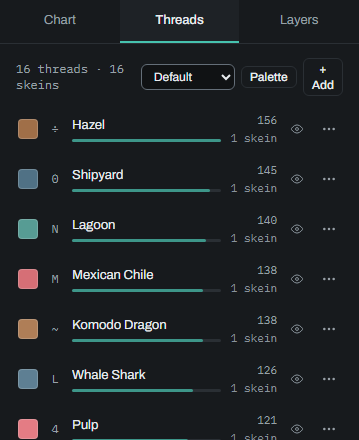
The thread list
The top line says how many threads the chart uses and how many skeins they need. Under it, the threads are listed with the most used first. Each row shows:
- the thread's colour: press it to change the colour;
- its symbol: press it to choose another;
- its name: double-click it, or press F2, to rename the thread. A thread from a thread system is named by its number and name, such as "310 - Black";
- a bar showing how much of the chart it covers, and its stitch count;
- how many skeins it needs, estimated on the generous side so you buy enough. A half stitch counts as half;
- an eye to light the thread (see Isolate, below);
- a ⋯ menu with what can be done with the thread: Use as background, Rename and Merge into…. On a touch screen, this is where a right-click and a double-click are.
Click a row to draw with that thread; clicking it again keeps it. Right-click a row, or choose Use as background in its ⋯ menu, to make it the second drawing colour. A thread you add becomes the drawing colour. When you merge the thread you are drawing with, you go on drawing with the thread it went into; merging it into Empty (no stitch) leaves you drawing with Empty. See Drawing for the two drawing colours.
The list works from the keyboard too: the up and down arrows move between rows, Enter or Space chooses a row as a click does, F2 renames its thread, and the menu key or Shift+F10 opens its ⋯ menu.
Empty (no stitch) is always last. It marks squares that should not be stitched at all, and never appears in the key or the thread counts. Draw with it to clear stitches.
If the chart has backstitch, a Backstitch section follows, with each thread's length of backstitch.
Sorting the list
The choice beside Palette sorts the list:
- Default: the most used thread first (in the Backstitch section, the longest).
- Lightness: lightest to darkest.
- Hue: round the colour wheel, from red through yellow, green and blue to purple and pink, with the whites, greys and black last, lightest first.
- Saturation: the most vivid first, the greys last.
Sorting only changes how the list is shown. The chart, its symbols, the order of its colours in the key and in every export stay as they are. The choice is remembered in this browser.
Adding a thread
+ Add adds a thread. If the chart was made in a thread system, such as DMC, you pick a thread from it: search by number or name, and press a colour to add it. The choice beside the search sorts the threads by Lightness, Hue or Saturation, as the thread list is sorted, or shows them in the system's own order (Default). The same sorting is used wherever you pick a thread: here, when changing a thread, and in Set up palette. With Full range, choose any colour and press Add.
A chart holds at most 100 threads. Once it has 100, + Add is greyed out.
Changing a thread
Press a thread's colour to open its editor under the row:
- With Full range, drag the colour picker. The thread keeps its name.
- With a thread system, search by number or name and press a colour. The thread takes that colour and its number and name.
- System and Number record which real thread this is, without changing the colour.
With a thread system, Similar lightness, Similar hue and Similar saturation help find a close thread. Each marks the threads near the colour you opened the editor on, and fades the rest; the line above the colours says how many are marked. Turn on more than one and only the threads close in every one are marked. Whites, greys and black count as similar in hue only to each other. Faded threads can still be picked, and the marks stay put as you try threads, since they are measured from the colour you started with. The switches stay as you left them, for the next colour and the next visit.
Changes show at once. Done keeps them; Cancel (Escape) puts the thread back as it was when you opened the editor.
Symbols: press a thread's symbol to choose another. Choosing a symbol another thread uses swaps the two threads' symbols.
Every change to a thread is one step you can undo.
Merging threads
Drag a thread onto another in the list, or choose Merge into… in its ⋯ menu and then the other thread, to merge them: its stitches, and its backstitch, take the other thread, and it leaves the list. This changes every layer, as one step to undo. It is a quick way to clean up two shades nobody could tell apart.
To take a thread out of the chart altogether, drag it onto Empty (no stitch), or merge it into Empty (no stitch) from its menu. Its stitches become empty and its backstitch is deleted.
Dragging a thread onto the chart fills the area under it with that thread exactly as a click of Fill would: by Fill's Diagonal neighbours and Colour only settings, with the stitch type chosen, symmetry and Lock transparency. A finger drags a thread onto the chart the same way.
Isolate
Isolate shows only some threads at full strength, so you can see where one colour is, or paint it without missing a stitch.
- Press the eye at the end of a thread's row to light it. Lighting a thread turns Isolate on.
- Every thread that is not lit is dimmed. Backstitch threads have eyes of their own.
- The eye button in the view bar, with the number of lit threads, turns Isolate off and on. It stays on while you paint.
- Turning off the last lit thread turns Isolate off.
Lighting a thread does not choose it for drawing. Isolate is not saved with the chart.
Palettes
Palette, beside + Add, keeps the chart's threads as a palette to use in other charts:
- Save to account keeps the palette in your account under the name you give it (you need to be logged in). Save as file downloads it as a palette file.
- Your palettes… lists the palettes in your account, to Load or Delete. Load a palette file (.json) opens one from your computer.
When you load a palette, you choose what it does:
- Append adds the palette's threads the chart does not have yet.
- Replace makes the chart use the palette's threads instead of its own: each of the chart's threads becomes the same thread in the palette, or else the nearest-looking one. This changes every layer, as one step to undo.
The same palettes are used by Set up palette while a chart is made from a photo, to make a chart from colours you choose. See From a photo to a chart.
Thread systems
The site has three thread systems: DMC, Cosmo and Anchor. Cosmo publishes no colour names. Anchor's colours are taken from each thread's DMC equivalent, as no measured Anchor colours exist.
You can also add thread systems of your own, for a brand the site does not have or your own stash. You need to be logged in. In your account, open Thread systems and press Upload a thread system (CSV or JSON):
- A CSV file has one thread on each line: its number, its name and its colour (such as
#a03030), separated by commas, semicolons or tabs. A first line of column names is allowed. - A JSON file is a list of threads, each with a number, a name and a colour.
A system may have up to 2,000 threads, in a file of up to 512 KB. Your own systems are offered beside the site's, under Yours: when you generate a chart, when you add a thread and when you change one. Only you see them.
On the Thread systems page you can rename a system, download it as CSV or JSON, or delete it. Charts keep the colours of a system you delete.