From a photo to a chart
Making a chart from a photo is a step of its own, before you edit it. You choose a photo, set how big the chart is and how many colours it may use, and press Generate. The chart is made on this site's server and appears in a few seconds, rough at first and then finished. Change the settings and press Generate again until you like it, then press Accept and edit to take it on to Edit and Export.
While a chart is being made there are no workspace tabs: nothing here draws on the chart.
Choosing a photo
On the start screen, press Choose a photo. A JPEG, PNG, WebP or SVG file of up to 25 MB works. The photo is sent to this site's server to be charted.
An SVG drawing has no pixels of its own, so it is drawn once, in your browser, into a picture 4000 pixels on its longer side and in its own shape, and that picture is the photo from then on: it is what is sent, saved with the chart and reopened. A small icon is drawn sharp at that size, not enlarged; a drawing too detailed to fit the 25 MB limit at that size is drawn a little smaller, down to 1500 pixels. Its transparent parts become empty stitches, as a transparent PNG's do. Scripts in it never run and nothing it links to is loaded, so a linked picture or font is left out; a picture embedded in the file is drawn.
You can also drop a photo anywhere on the start screen or while a chart is made, or paste one you have copied (Ctrl+V). With a chart already made, the photo opens in a tab beside it, so the chart you had is kept. Pasting into a text field pastes text as usual, and in Edit or Export a dropped or pasted photo is not taken.
The settings are on the right (below the chart on a phone, where they fold away to give the chart room, or on a tablet held upright), under Photo settings, in four tabs: Picture, Chart settings, Palette and Lines & texture. Nothing is made until you press Generate at the foot of the panel (see How a chart is made).
Adjusting the photo
The Picture tab has four sliders: Brightness, Contrast, Saturation and Warm / cool. Each runs from −100 to 100 and starts in the middle. Double-click a slider to put it back to the middle.
The sliders only show you what the change would look like. Press Apply to change the photo, or Cancel to put the sliders back. Changes you have not applied are dropped when you open another tab, and the chart is made from the photo without them. A note under the sliders, and one at the foot of the panel, remind you.
Under the sliders, Undo and Redo step through your changes to the photo, and Restore original goes back to the photo as you loaded it. That can be undone too.
Changing part of the photo
The Photo wand selects part of the photo by its colour. Press on the photo to select the area of similar colour around that point.
- Wand sensitivity (0 to 100, 20 to begin with) sets how different a colour may be and still be selected. At 0 only the exact colour is taken.
- Wand reach: Touching takes only the area that touches the point you pressed. All takes every pixel of a similar colour, anywhere in the photo.
- Diagonal neighbours: whether pixels touching only at a corner count as touching.
- Select, Select + and Select − replace the selection, add to it, or take away from it.
With part of the photo selected, Apply becomes Apply to selection and changes only that part. Delete (or the Delete key) takes the selected pixels out of the photo, for example a background you don't want stitched. Undo puts them back. Invert selects everything else, and Deselect (Escape) lets the selection go.
Cropping the photo
The Photo crop tool (C) cuts the photo to a frame before it is charted. Drag an edge or a corner of the frame, or type in the bar how many pixels to cut from each edge: Top, Right, Bottom and Left. The bar shows the size the photo will have. Apply (Enter) cuts it, and Cancel (Escape) puts the frame back over the whole photo. A photo can only be cut, never made larger. A crop is a step of the photo's history, so Undo in the Picture tab puts the photo back.
The grid and moving the photo
Before the first chart, the grid the chart will be cut on is drawn over the photo, one square a stitch and every tenth line heavier, so you can see how big the stitches will be.
The Move photo tool (V) moves the photo under that grid. Drag the photo, or press the arrow keys to move it a tenth of a stitch at a time (with Shift, a whole stitch). Use it to set a line in the photo along a column of stitches instead of across two, or just to place the subject. The grid itself stays where it is and keeps its size; stitches the photo no longer reaches are left empty. Press Generate to make the chart from where the photo now lies; the tool stays in hand for the next move. The bar shows how far the photo has moved, in stitches, and Put back returns it to where it was loaded. A chart keeps where its photo lay, so it is there again when you reopen it; a new photo, or a change to the photo, starts where it was loaded.
These are the tools for the photo:
| Tool | Key | What it does |
|---|---|---|
| Pan | H | Drag to scroll the chart, or hold Space with any tool in hand |
| Zoom | Z | Click to zoom the way chosen, right-click or Shift-click the other way; the wheel always zooms too |
| Photo wand | W | Select a colour on the photo by pressing it: its touching area, or every pixel like it. Sensitivity sets how alike; Delete takes the selection out of the photo. |
| Photo crop | C | Cut the photo down to a frame. Drag an edge or a corner, or type how many pixels each edge moves in. Apply with Enter; Undo puts the photo back. |
| Move photo | V | Move the photo under the grid. Drag it, or use the arrow keys: a tenth of a stitch at a time, a whole stitch with Shift. The chart is made again from where it lies. |
The chart settings
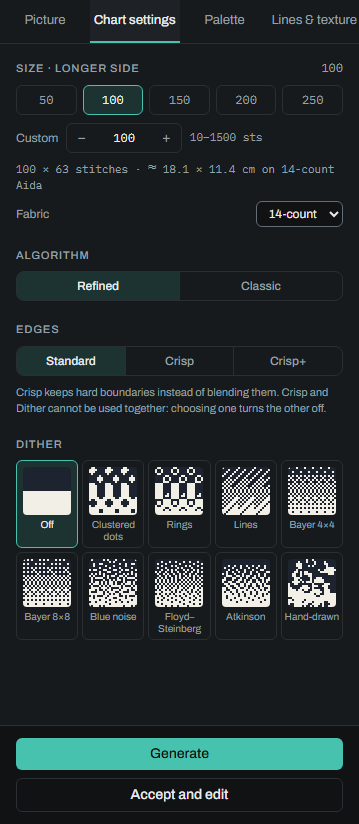
Size · longer side is how many stitches the chart has along its longer side: 50, 100 (to begin with), 150, 200 or 250, or a number of your own from 10 to 1500 under Custom. The shorter side follows the photo's shape. The line under it gives the chart's size in stitches and how big the finished piece will be, such as "120 × 80 stitches · ≈ 21.8 × 14.5 cm on 14-count Aida".
Fabric is the cloth the size and the thread to buy are worked out for, by the count on its label: Aida from 11 to 20-count, or evenweave or linen at 22, 25, 28 and 32-count. Evenweave has a second choice, over one or over two: over two, each stitch crosses two threads each way and is twice the size, so 28-count over two comes out the same size as 14-count Aida. 22 and 25-count start over one, 28 and 32-count over two. It is the chart's own fabric, the same one as in the chart's settings.
Algorithm:
- Refined (to begin with) spends spare colours on small details that stand out.
- Classic is the algorithm the site first had: colours follow how much of the photo uses them.
Edges:
- Standard blends colours across a boundary.
- Crisp keeps hard boundaries between colours, which suits drawings and logos.
- Crisp+ does the same and also tidies slightly soft edges, while keeping real thin lines and gradients.
Dither
Dithering mixes stitches of two threads to stand for a colour between them, as a printed picture mixes dots. A dithered chart is closer to the photo in smooth shading, but has more single stitches to make. Off gives each stitch its nearest thread.
Each dither pattern is shown as a tile over a dark-to-light ramp, and the chosen one is shown larger under the tiles. Choosing a dither pattern sets Edges back to Standard, and choosing Crisp or Crisp+ turns dithering off.
| Dither pattern | Kind | What it gives | Variants |
|---|---|---|---|
| Clustered dots | Screens | fewest single stitches | — |
| Rings | Screens | fewest single stitches | — |
| Lines | Screens | fewest single stitches | Horizontal lines, Vertical lines, Diagonal lines, rising, Diagonal lines, falling |
| Bayer 4×4 | Scattered | closer to the photo | — |
| Bayer 8×8 | Scattered | closer to the photo | — |
| Blue noise | Scattered | closer to the photo | — |
| Floyd–Steinberg | Error diffusion | closest, never worse | — |
| Atkinson | Error diffusion | closest, never worse | — |
| Hand-drawn | Drawn | marks, not a repeat | — |
Lines has four directions, chosen under the tiles. Hand-drawn draws marks rather than a repeating dither pattern. It has its own settings, and pressing its preview scatters the marks again.
The palette
The Palette tab decides which colours the chart may use.
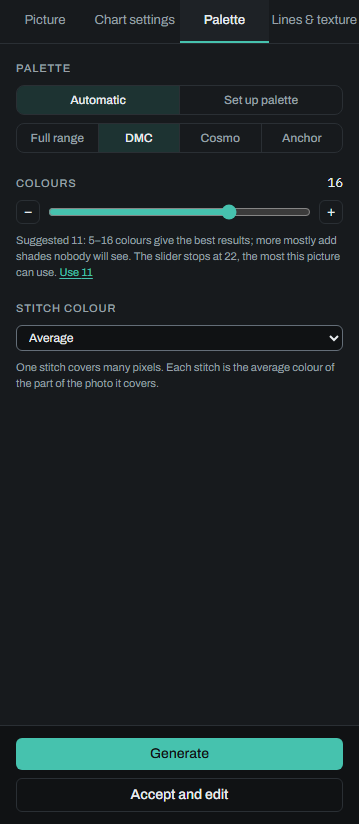
Palette:
- Automatic picks the colours from the photo, as many as Colours below says.
- Set up palette lets you choose the colours yourself. The chart is then made from those colours and no others, so there is no count to set. Your chosen colours can be shown sorted by Lightness, Hue or Saturation, which makes gaps and near-duplicates easy to spot; drag them into your own order in Default.
Under it, choose a thread brand (DMC, Cosmo, Anchor) to snap every colour to a thread you can buy, or Full range to use whatever colours fit the photo best. A new photo starts with DMC; Preferences sets which one it starts with. Similar shades may then merge into one. Your own thread systems are offered under the brands.
Colours is how many thread colours the chart may use, from 2 up. Once a photo is loaded, the app suggests a number and a range that gives the best results, with a Use link to take it. More colours than that mostly add shades nobody will notice. With Set up palette there is no count: the chart uses your palette's colours.
Stitch colour is how the part of the photo a stitch covers becomes that stitch's colour:
- Average: the average of the part of the photo it covers. This is the usual choice.
- Vivid: keeps the average lightness but takes the colour of its most colourful part, so a small bright detail doesn't turn grey. It needs a photo big enough for each stitch to cover about 25 pixels.
- Dominant colour: the colour most of that part is, so a thin line or a few stray pixels don't tint the stitch. Good for flat artwork, logos and drawings.
- Median: the middle value of its pixels, so a speck or a thin line doesn't move it. Good for a noisy photo.
- Centre pixel: the one pixel at the middle of the stitch. Crisp, but small details can be missed or picked up by chance. Suits pixel art made at a whole multiple of the chart's size.
- Sharper: fine detail stays crisper than with Average. Beside a hard edge a stitch may come out a shade lighter or darker.
A stitch the photo leaves empty stays empty whichever you choose.
Lines and texture
On the Lines & texture tab:
- Backstitch from lines finds thin lines in a drawing, such as outlines, whiskers and lettering, and stitches them as backstitch instead of a ragged row of stitches. Also in photographs lets it trace only the strongest long thin lines in a photo, such as a branch or a fence rail. Line sensitivity (0 to 10) sets how readily a line is found.
- Texture strokes lays short backstitch strokes over fine texture such as fur, feathers, hair, bark or grass, running the way the texture runs. Stroke density (0 to 10) sets how many. A smooth area gets none.
How a chart is made
A chart is made only when you press Generate, at the foot of the panel. A new photo shows no chart until you do. Once a chart is made, a change to what it is made from (a setting on any of the four tabs, the photo sliders once you apply them, a crop, or the photo itself) leaves the chart as it is. Generate is unavailable while the chart on screen is what it would make, and becomes available again once something has changed. Press it to see the change.
While the chart is made, the foot of the panel shows how far it has got and a Cancel button, which stops it here and on the server. The settings stay on screen, and you can go on changing them meanwhile. Pressing Generate again stops the chart being made and starts the next, so the server is never making two charts for you at once. If the server is busy, you wait in line and see your place. One generation may take up to 45 seconds.
The chart shows as it forms, each step the real one, not a picture standing in for it: first every stitch in the average colour of the photo under it, then in the threads chosen, then the finished chart. It is drawn as the chart is: over the photo at the strength you chose for the chart, and not at all while the chart is hidden. It shows once you show the chart again.
Each new chart is one step you can undo. Undo goes back to the chart before, with its settings, and nothing is made again for it.
If a plan limits how many charts you can generate, a photo counts once however often its chart is made again. A new photo counts again.
Accept and edit
When you have the chart you want, press Accept and edit, beside Generate. The chart goes on to Edit and Export, the only workspaces from then on, and its history starts there: the charts you tried are not steps of it. A chart still being made is stopped.
You can press Accept and edit without making a chart, too. You then get an empty grid of the size you chose over the photo, with no colours, or with the colours you chose under Set up palette, to stitch by hand.
If you change a setting or the photo after making a chart and press Accept and edit without generating again, it asks first. After a settings change it takes the chart as it was made, without the change. After a photo change (a crop, say) the chart is of the photo as it was, so you get the empty grid at the chosen size instead. Press Cancel and then Generate to make the chart from what you changed.
Once a chart is accepted it is not made again. To make another chart from the same photo, choose New chart from this photo in Commands (on a phone, in the menu). It opens in a tab beside your chart, with the photo as you changed it and the same settings, and your chart stays as it is.
What can go wrong
- "That image is larger than 25 MB." Save the photo smaller, or as a JPEG. A photo this large is refused as soon as you choose it, before anything is sent.
- "Couldn't read that image." The file is not a JPEG, PNG, WebP or SVG the browser can open. Try another file.
- "Waiting for a free slot" means others are generating at the same moment. Your chart is made when your turn comes.
- "Too many requests from this address; wait a moment and try again." At most 30 charts a minute can be generated from one address.
- "The job ran past its time limit." Try a smaller size or fewer colours.