Text
Text turns a line of words into stitches. It is in the tool rail of the Edit workspace, and has no key. While you hold it, its settings fill the panel on the right.
Setting up the letters
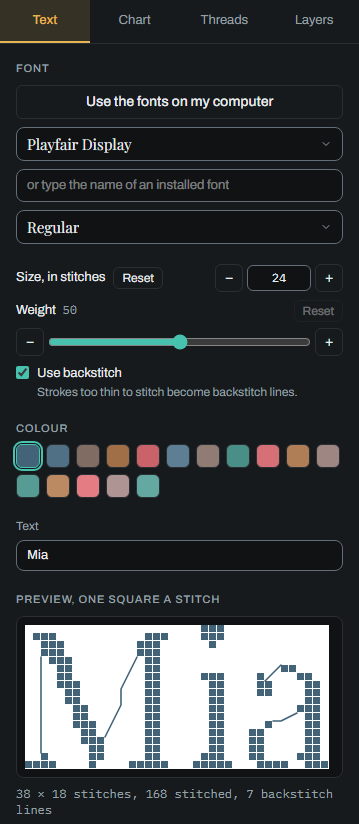
- Font: choose from Pixel fonts, bundled (36 of them), Other fonts, bundled (5), or the fonts on your computer. Each name in the list is written in its own font, so you see the letters before you choose; the bundled fonts load once when the app opens, and your browser keeps them for later visits. The list works from the keyboard too: the arrow keys move, typing the first letters of a name finds it, Enter chooses and Escape closes. Use the fonts on my computer lists them: your browser asks first, and the fonts never leave your computer. If your browser can't list them, type the name of an installed font instead.
- Font type: Regular, Bold, Italic and the other faces the font has, each written as it looks.
- Size: how many stitches high the letters are, from 7 to 200. It starts at 12. A pixel font comes out cleanest at certain sizes, and a note says which; Reset size goes back to the size the font reads best at.
- Weight: from 0 to 100, starting at 50. A heavier weight stitches more of each letter; a lighter one fewer.
- Use backstitch: off at first. Turned on, the strokes too thin to make a stitch, such as the hairlines of a serif font, become backstitch lines in the same thread, running straight from corner to corner. A letter can mix the two, but each stroke is one or the other: a stray stitch on a hairline becomes part of its line, a line too short to read as a stroke is left out, and no line runs along a stitched square. It follows the Backstitch tool: greyed out where that tool is not available to you, and absent where the tool is not offered.
- Colour: the thread the letters are stitched in, chosen from the chart's threads.
- Text: one line, up to 100 characters.
The preview shows the letters one square to a stitch, with their size in stitches and how many stitches they take; with Use backstitch on it draws the lines too and counts them. Under it, notes warn when the letters may not read well: small outline fonts lose their curves, lowercase letters need about 12 stitches to keep their holes open, letters may touch at small sizes, and very light or very heavy weights can break strokes or fill holes.
Small lettering often reads better done in backstitch: try Use backstitch, or draw it by hand, see Backstitch and stitch types.
The settings are remembered in this browser; the text itself is not.
Putting the letters on the chart
There are two ways:
- Press Add: the letters land three stitches in from the top-left corner of the part of the chart you can see.
- Press on the chart: the letters land with their top-left corner where you pressed, kept inside the chart.
Either way they arrive as a piece in hand on the active layer, ready to drag, flip or turn, and to put down with Apply here. See Selecting and moving. Only the stitched squares of the letters are part of the piece, so what lies between them stays. Backstitch lines come in the same piece, so they move, flip and turn with the letters, and one Undo takes the whole lettering back.
When Add is greyed out
The reason is shown under the button:
| Message | What to do |
|---|---|
| Open a chart first. | Start or open a chart. |
| Text is added in Colour or B&W, with the chart at least 5 % visible. | Switch the view to Colour or B&W, and turn the chart up. See Chart views. |
| This chart has no threads yet. Add one in the Threads tab. | See Colours and threads. |
| Type some text. | Type the words in the Text box. |
| That text has nothing to draw. | The font has no letters for what you typed; try another font. |
| The text is w × h stitches; this chart is w × h. | Make the size smaller, or the chart bigger. |