Layers
A chart can have up to 32 layers, stacked one over another. Where two layers both have a stitch in the same place, the upper one is the one you see, stitch and print. A new chart has one layer, Layer 1.
Layers let you try something without touching what is under it: draw a border on a layer of its own, and you can hide it, move it in the stack or delete it later without touching the rest.
The Layers tab
The Layers tab is in the panel on the right of the Edit workspace, beside Chart and Threads. The list shows the top layer first.
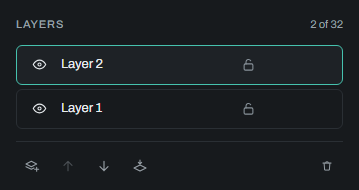
- Press a layer to make it the active layer, the one you draw on.
- The eye hides or shows a layer. A hidden layer is left out of everything: the view, the thread counts and every export.
- The padlock locks a layer. A locked layer is shown and printed, but you can't draw on it, rename it, merge it or delete it until you unlock it. The stitches you see from a locked layer are marked with thin grey diagonal lines in Edit's Colour and Black & white views; the marks are never printed or exported. While the layer you are working on is locked, the pointer over the chart shows a small padlock instead of its dot.
- Double-click a name, or press F2, to rename it. Enter keeps the new name, Escape keeps the old one.
- Drag a layer up or down the list to move it. While you drag, each other layer shows a Merge box: drop on it to merge the dragged layer into that one.
The buttons under the list:
- Add layer puts a new empty layer above the active one, and makes it active.
- Move up and Move down move the active layer in the stack.
- Merge down merges the active layer into the one under it. The layer merged into keeps its place, name and whether it is shown, and where both have a stitch, the upper one's stitch is kept.
- Delete layer deletes the active layer. A chart always has at least one layer, so the last one can't be deleted.
Every change here is one step you can undo, except choosing the active layer.
What works on which layer
- The drawing tools, Text, the selection tools, stamps and the quick mirrors change the active layer only. On a hidden or locked layer they are refused, with a note saying why.
- Move and Crop change every layer, locked ones too. So do merging two threads and loading a palette.
- The Picker takes the colour you see, from whichever layer it is on.
- Backstitch lies over every layer.
When you save the chart as a file you can open again, every layer is kept, hidden ones too, with its name, place and lock. Every other export uses only what you see: the top stitch of the layers that are shown.
Lock transparency
The padlock at the end of the options bar, shown with the drawing and selection tools, is the transparency lock. It is not a layer setting.
While it is locked, drawing and filling can't turn an empty stitch into a coloured one, or a coloured stitch into an empty one. Changing one colour to another still works, so you can repaint a shape without drawing outside it, and Fill selection paints only the stitches that are not empty.
It is off to begin with, and this browser remembers it.